In this tutorial, we will see how to Install Prometheus On a Linux Server. Prometheus is an open-source tool which is used for monitoring system and it is very lightweight and has a good alerting mechanism.

Prerequisite to install Prometheus:
- Linux sudo / root access required
- Linux server would need internet access for downloading Prometheus packages
- To access Prometheus on port 9090 you need to Open/configure the firewall on the Linux server, If you are using Amazon ec2 then ensure you have open port 9090 at the security group also.
[ads1]
In this tutorial, I am using an Amazon EC2 machine with Amazon Linux 2 Operating system. Let’s start with steps on how to Install Prometheus On a Linux Server.
Step 1: Update the yum package repositories
$ sudo yum update -y
Step 2: Download Prometheus Linux Binary
Method 1: Go to the official Prometheus downloads page
(or)
Method 2: Download Prometheus binary on Linux server with the curl command:
$ curl -LO https://github.com/prometheus/prometheus/releases/download/v2.17.1/prometheus-2.17.1.linux-amd64.tar.gz
(or)
Method 3: Download Prometheus binary with wget command on your Linux Server
$ sudo yum install wget -y

$ sudo wget https://github.com/prometheus/prometheus/releases/download/v2.17.1/prometheus-2.17.1.linux-amd64.tar.gz
I have used method 3 to download Prometheus binary on Linux
Sample Output:
[ads4]
[ec2-user@Prometheus-Server ~]$ sudo wget https://github.com/prometheus/prometheus/releases/download/v2.17.1/prometheus-2.17.1.linux-amd64.tar.gz
--2020-04-02 07:45:31--  https://github.com/prometheus/prometheus/releases/download/v2.17.1/prometheus-2.17.1.linux-amd64.tar.gz
Resolving github.com (github.com)... 13.234.176.102
Connecting to github.com (github.com)|13.234.176.102|:443... connected.
HTTP request sent, awaiting response... 302 Found
Location: https://github-production-release-asset-2e65be.s3.amazonaws.com/6838921/2ab24c80-6fa0-11ea-885e-96dd0c3494de?X-Amz-Algorithm=AWS4-HMAC-SHA256&X-Amz-Credential=AKIAIWNJYAX4CSVEH53A%2F20200402%2Fus-east-1%2Fs3%2Faws4_request&X-Amz-Date=20200402T074531Z&X-Amz-Expires=300&X-Amz-Signature=933134312d91779e2efdfaae85d91d171bca39da9e06ce8c37e89166678b636c&X-Amz-SignedHeaders=host&actor_id=0&response-content-disposition=attachment%3B%20filename%3Dprometheus-2.17.1.linux-amd64.tar.gz&response-content-type=application%2Foctet-stream [following]
--2020-04-02 07:45:31--  https://github-production-release-asset-2e65be.s3.amazonaws.com/6838921/2ab24c80-6fa0-11ea-885e-96dd0c3494de?X-Amz-Algorithm=AWS4-HMAC-SHA256&X-Amz-Credential=AKIAIWNJYAX4CSVEH53A%2F20200402%2Fus-east-1%2Fs3%2Faws4_request&X-Amz-Date=20200402T074531Z&X-Amz-Expires=300&X-Amz-Signature=933134312d91779e2efdfaae85d91d171bca39da9e06ce8c37e89166678b636c&X-Amz-SignedHeaders=host&actor_id=0&response-content-disposition=attachment%3B%20filename%3Dprometheus-2.17.1.linux-amd64.tar.gz&response-content-type=application%2Foctet-stream
Resolving github-production-release-asset-2e65be.s3.amazonaws.com (github-production-release-asset-2e65be.s3.amazonaws.com)... 54.231.98.184
Connecting to github-production-release-asset-2e65be.s3.amazonaws.com (github-production-release-asset-2e65be.s3.amazonaws.com)|54.231.98.184|:443... connected.
HTTP request sent, awaiting response... 200 OK
Length: 60140415 (57M) [application/octet-stream]
Saving to: ‘prometheus-2.17.1.linux-amd64.tar.gz’

100%[===================================================================================================>] 60,140,415  8.44MB/s   in 8.0s

2020-04-02 07:45:40 (7.15 MB/s) - ‘prometheus-2.17.1.linux-amd64.tar.gz’ saved [60140415/60140415]

[ec2-user@Prometheus-Server ~]$
Step 3: Create a Prometheus user and required Prometheus data directories
sudo useradd --no-create-home --shell /bin/false prometheus

sudo mkdir /etc/prometheus

sudo mkdir /var/lib/prometheus
Step 4: Make Prometheus user as the owner of Prometheus directories
sudo chown prometheus:prometheus /etc/prometheus

sudo chown prometheus:prometheus /var/lib/prometheus
Sample output: how the directory looks like
[ec2-user@Prometheus-Server ~]$ ls -ld /etc/prometheus && ls -ld /var/lib/prometheus
drwxr-xr-x 2 prometheus prometheus 6 Apr  2 07:48 /etc/prometheus
drwxr-xr-x 2 prometheus prometheus 6 Apr  2 07:48 /var/lib/prometheus
[ec2-user@Prometheus-Server ~]$
Step 5: Extract and rename the Prometheus source code which is downloaded in Step 1
tar -xzvf prometheus-2.17.1.linux-amd64.tar.gz

mv prometheus-2.17.1.linux-amd64 prometheus-binary-files
Step 6: Copy 2 files Prometheus and Promtool binary to /usr/local/bin
sudo cp prometheus-binary-files/prometheus /usr/local/bin/

sudo cp prometheus-binary-files/promtool /usr/local/bin/
Step 7: Update/Change the ownership of the Prometheus and Promtool binary file to Prometheus user.
After copied files to /usr/local/bin ownership will be the root user.
Sample output:
[ec2-user@Prometheus-Server ~]$ ls -l /usr/local/bin/prometheus && ls -l /usr/local/bin/promtool
-rwxr-xr-x 1 root root 84338005 Apr  2 07:55 /usr/local/bin/prometheus
-rwxr-xr-x 1 root root 48235996 Apr  2 07:55 /usr/local/bin/promtool
[ec2-user@Prometheus-Server ~]$
Change the ownership of these above files:
sudo chown prometheus:prometheus /usr/local/bin/prometheus

sudo chown prometheus:prometheus /usr/local/bin/promtool
Sample output – ownership changed:
[ads3]
[ec2-user@Prometheus-Server ~]$ ls -l /usr/local/bin/prometheus && ls -l /usr/local/bin/promtool
-rwxr-xr-x 1 prometheus prometheus 84338005 Apr  2 07:55 /usr/local/bin/prometheus
-rwxr-xr-x 1 prometheus prometheus 48235996 Apr  2 07:55 /usr/local/bin/promtool
[ec2-user@Prometheus-Server ~]$
Step 8: Move the consoles and console_libraries directories
-> to /etc/prometheus directory and change the ownership.
sudo cp -r prometheus-binary-files/consoles /etc/prometheus

sudo cp -r prometheus-binary-files/console_libraries /etc/prometheus

sudo chown -R prometheus:prometheus /etc/prometheus/consoles

sudo chown -R prometheus:prometheus /etc/prometheus/console_libraries
Sample output – files copied and changed ownership of files
[ec2-user@Prometheus-Server ~]$ ls -l /etc/prometheus/consoles && ls -l /etc/prometheus/console_libraries
total 36
-rw-r--r-- 1 prometheus prometheus  616 Apr  2 07:59 index.html.example
-rw-r--r-- 1 prometheus prometheus 2675 Apr  2 07:59 node-cpu.html
-rw-r--r-- 1 prometheus prometheus 3513 Apr  2 07:59 node-disk.html
-rw-r--r-- 1 prometheus prometheus 1444 Apr  2 07:59 node.html
-rw-r--r-- 1 prometheus prometheus 5794 Apr  2 07:59 node-overview.html
-rw-r--r-- 1 prometheus prometheus 1334 Apr  2 07:59 prometheus.html
-rw-r--r-- 1 prometheus prometheus 4103 Apr  2 07:59 prometheus-overview.html
total 12
-rw-r--r-- 1 prometheus prometheus 2888 Apr  2 07:59 menu.lib
-rw-r--r-- 1 prometheus prometheus 6064 Apr  2 07:59 prom.lib
[ec2-user@Prometheus-Server ~]$
[divider style=”normal” top=”20″ bottom=”20″]
How to Configure Prometheus on Linux Server
[box type=”info” align=”” class=”” width=””]All Prometheus config file present in /etc/prometheus/prometheus.yml[/box]
[ads2]
Step 1: Create the Prometheus Configuration file
sudo touch /etc/prometheus/prometheus.yml
Step 2: Add the below content to the Prometheus configuration file
file: cat /etc/prometheus/prometheus.yml
global:
  scrape_interval: 10s

scrape_configs:
  - job_name: 'prometheus'
    scrape_interval: 5s
    static_configs:
      - targets: ['localhost:9090']
Step 3: Change the ownership of the prometheus.yml file
sudo chown prometheus:prometheus /etc/prometheus/prometheus.yml
[ec2-user@Prometheus-Server ~]$ ls -l /etc/prometheus/prometheus.yml
-rw-r--r-- 1 prometheus prometheus 156 Apr  2 08:01 /etc/prometheus/prometheus.yml
[ec2-user@Prometheus-Server ~]$
[divider style=”normal” top=”20″ bottom=”20″]
[ads1]
Configure Prometheus Service File on Linux
Step 1: Create a Prometheus service file
sudo vi /etc/systemd/system/prometheus.service
Step 2: Add below content to the Prometheus Service file
sudo cat /etc/systemd/system/prometheus.service
[Unit]

Description=Prometheus

Wants=network-online.target

After=network-online.target


[Service]

User=prometheus

Group=prometheus

Type=simple

ExecStart=/usr/local/bin/prometheus \

    --config.file /etc/prometheus/prometheus.yml \

    --storage.tsdb.path /var/lib/prometheus/ \

    --web.console.templates=/etc/prometheus/consoles \

    --web.console.libraries=/etc/prometheus/console_libraries


[Install]

WantedBy=multi-user.target
[ads2]
Step 3: Register the Prometheus service in systemd and start the Prometheus service
sudo systemctl daemon-reload

sudo systemctl start prometheus
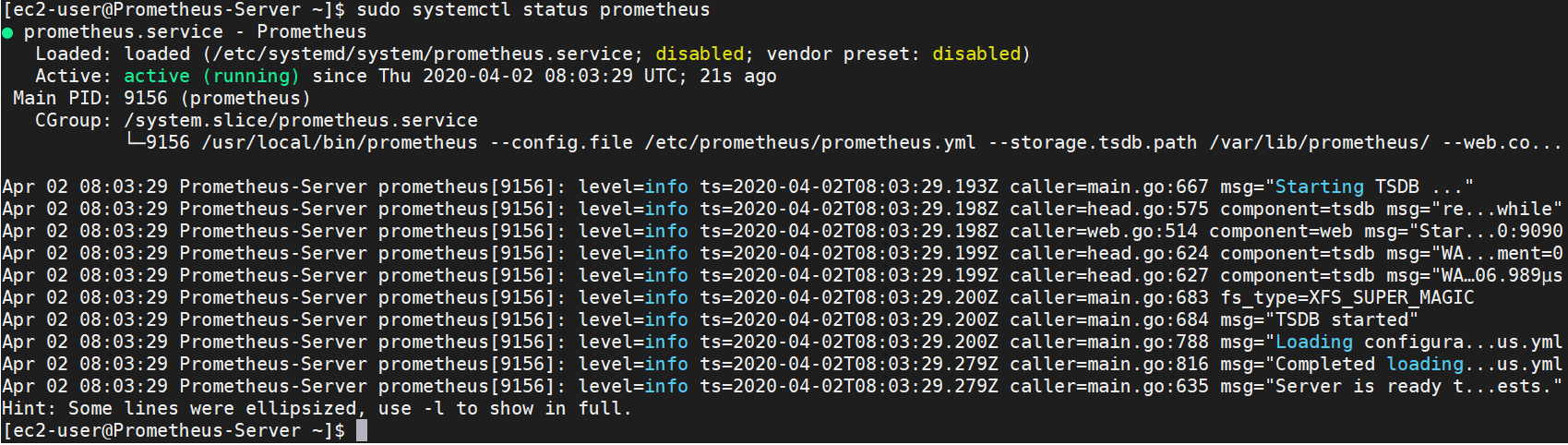
Step 4: Command to check the Prometheus service status
sudo systemctl status prometheus
Sample output in the screenshot
Access Prometheus on your Web-browser
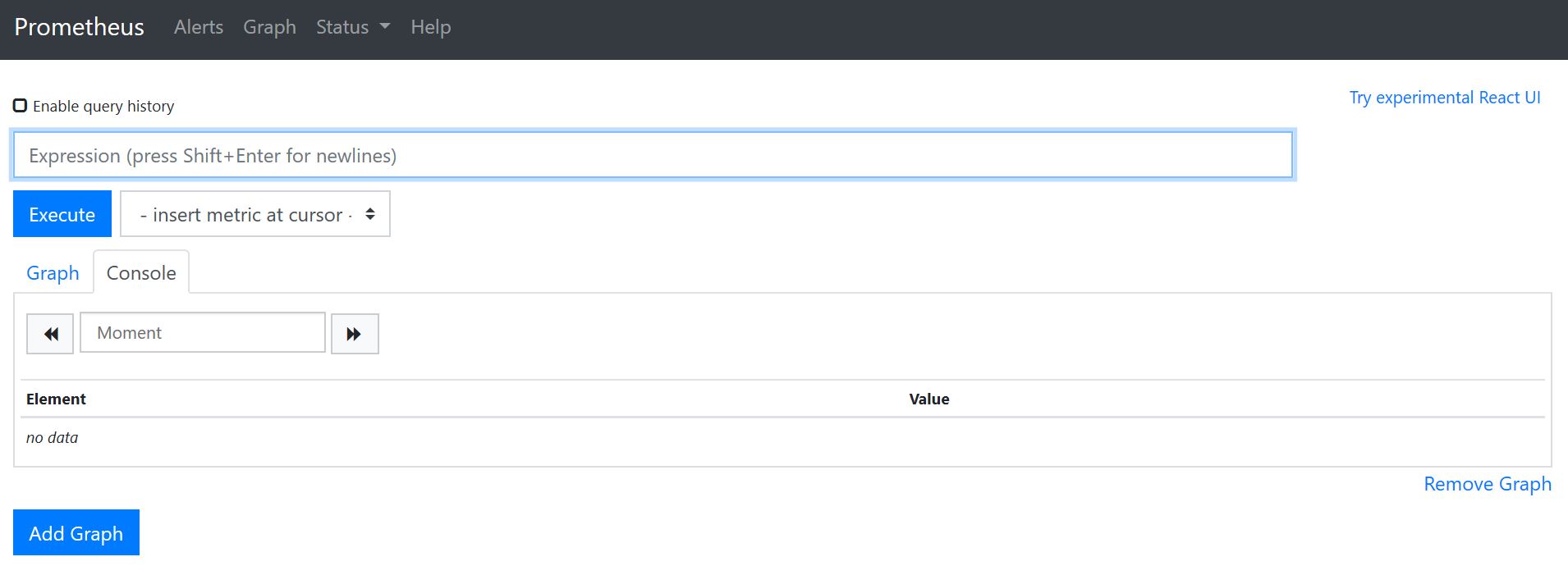
http://<prometheus-ip>:9090/graph
[ads4]
Example of how UI looks like :
This is the end of tutorials, we explained all the steps on How to Install Prometheus On a Linux Server.
[divider style=”normal” top=”20″ bottom=”20″]
If you found this article informative then don’t miss checking out the below articles and share it with your friends and colleague.
[ads1]
Steps to connect Linux Server from windows using Putty
Steps to Install Docker on Ubuntu